Showing posts with label music. Show all posts

Saturday, 29 June 2013

Cassette Tapes: given a new life

In recent times vinyls (or records as I referred to them in my younger age) have shown signs of resurgence, CDs are still readily available and the digital format is quickly becoming the standard choice for many people's music. However there appears that there is a forgotten player in the music world: the cassette tape.

For the decade of the 80s, the cassette was the main format that the majority of consumers used to listen to their favourite bands, but with the 90s came the CD and by 1995 cassettes were scarcely seen on the majority of supermarket shelves, although they could still be found in dedicated music shops until 2000, but by then they were clearly old news.

Although I Luke music in general, mainstream artists that are constantly played on the radio, TV and appear regularly in the charts do not appeal to me. Rather I like to discover unknown artists through browsing sites such as Jamendo and Bandcamp. I was extremely happy to see recently that indie artists are starting to sell their music in cassette form, albeit in very limited numbers (usually 100 copies). But instead of simply flogging a dead horse, these indie artists are offering the tracks in digital format along with the physical cassette. If the purchase is made through Bandcamp then buyer is offered an immediate download, however with some of the other music sites the cassette includes a download code printed on a card that comes in the tape cover.


Whilst many people may see this as pointless and simply a way of hanging onto the past, the sale of cassettes does offer some advantages for the indie artist. Firstly the limited number means that the artist/band isn't investing a huge sum of money. Secondly an artist selling the cassette stands out from the crowd, it offers the consumer a trip down memory lane as well as also giving them the digital form to sync to their media players. Thirdly tapes aren't likely going to be copied. I'm not saying its impossible, all you need is a USB cassette deck, but the process is slow and the quality is considerably poorer than the files produced by a CD rip or the audio files offered by the majority of music sites. Most people don't have twin deck cassette players any more and blank cassette tapes aren't as readily available as they once were.

So when you look at this from this aspect it, then cassettes may be around, in limited numbers, for a while yet. They're not going to be flooding the market, but there's still some life in them yet.

Monday, 15 April 2013

CCJam - Community podcast

It is with a sense of eager anticipation that I announce the news of a new community podcast: CCJam.

CCJam has been released as part of the Unseenstudio Podcast Network, but it is quite different to the other podcasts on the network in that it is non-techy, this is a music podcast.

The aim of CCJam is to promote independent artists/bands, but the major difference with this project is that it is to be community run, this is not simply another podcast featuring Kevie.  Each episode is made up of two music tracks with the talk being submitted by individual show hosts.  The talk doesn't have to be too lengthy, just introduce yourself and the band, then where the listeners can go to listen to more tracks or to find out some further information.  Your welcome to talk about anything else in the show, it's up to you.

In order to make this as easy as possible for everybody, I have broken it down into three steps:

1.  Find a band that you wish to promote.*

2. Record your talk about the artist (no need for anything fancy, this may even be on your smartphone)

3. Email me (ccjam at unseenstudio dot co dot uk) the file along with the links for the tracks

That's it!!! I'll do the rest. The show will be released on the Unseenstudio website and it will be added to the subscribers feed automatically.  In order to make the show accessible to as wide a range as possible it is available in both Ogg and MP3 format.

*If the band releases their music under a copyright license then please have a band member email me with permission that CCJam is allowed to play their music.

Friday, 7 December 2012

Updated: MP3 files in Debian

A lot of new users move from Ubuntu to another Debian based distro to limit the ammount of change they experience. But often can be a bit daunted by the challenges that Ubuntu made easy for them. One such is music files in MP3 format.

Whilst I personally use Ogg Vorbis and would encourage all others to, I am realistic that a lot of people still want to use their MP3 files and even build up their collection.

*If you are unsure what the term "as root" means then simply add sudo before each command that requires root privileges, you will be required to enter your password as sudo is a powerful tool*

Playing MP3 files

For playing MP3 files, the quickest method is to download VLC player. This is available from the software repositories from the majority of distros. This can be installed very easily:

1. Open the terminal

2. As root type: apt-get install vlc

This now gives you a player.

Ripping CDs to MP3 format

Should you want to rip your CDs to MP3 format then we still have another few steps to take.

1. Open the terminal

2. As root type: apt-get install sound-juicer

This gives a program that will rip the music from a CD and save it onto the computer. We can load it up from the main menu (usually listed under the multimedia or sound and video), called Audio CD Extractor.
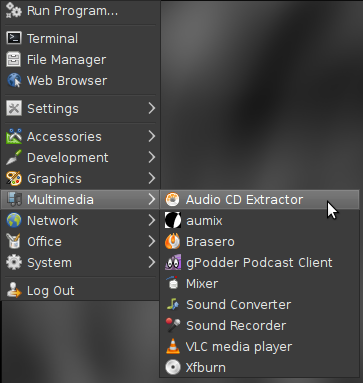


If we open this up and click on edit and preferences we should be greeted by a window as shown below:
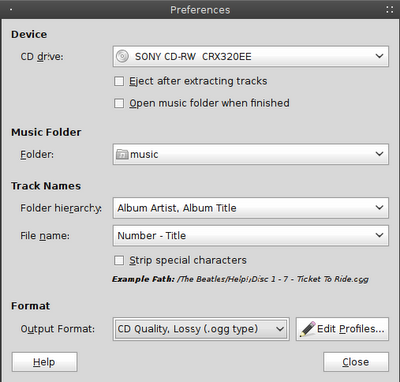


Down near the bottom of the window we should see Output Format, this by default is set to CD Qua;ity, Lossy (.ogg type). At this point if we click on this it will not give us the option of MP3. We still have a few more things to do.

The package we need is not available in the Debian repos due to Debian's commitment to free software. But we can add this. We need to go back to our terminal.

3. As root type: nano /etc/apt/sources.list (if you are met with the message unknown command nano, then you can retype the command replacing nano with gedit)

4. Decide what repos you would like to add:

Stable: deb ftp://ftp.deb-multimedia.org stable main non-free
Testing: deb ftp://ftp.deb-multimedia.org testing main non-free
Unstable: deb ftp://ftp.deb-multimedia.org sid main non-free

Add only one of the above choices, just type the part in bold to the end of document.

5. Exit the file by pressing Ctrl + X, it will then ask you if you wish to save press y and then hit return twice.

This will add the repos to our system, but we also need to have the keyring before the repos will work.

6. Download the Debian Multimedia keyring from here.

7. Navigate to the directory and, as root, type: dpkg -i debian-multimedia-keyring*.deb

8. as root, type: apt-get update

9. as root, type: apt-get install gstreamer0.10-lame gstreamer0.10-plugins-ugly

That's it.

To check it has worked open up Audio CD Extractor again, click on edit and preferences. This time when we click on Output Format, MP3 should be an option.

Enjoy your music.

Friday, 13 May 2011

Pogo music player


Having recently volunteered to do a bit of graphics work for a project called Pogo, I thought I should investigate this application a bit more and even give it a trial run. I have to confess, at the time the email came in requesting help with a logo I accepted the challenge without even knowing what the application did.

After briefly reading through the email and several brief conversations between the creator Jendrik Seipp and myself, I took a look at the website, which to my disappointment was simply a launchpad page. So the first thing that struck my mind was that this was, primarily, an Ubuntu project. The choices for download are a *.deb file or the source data in a *.tar.gz file. As I have Crunchbang installed on my system anyway I opted for the deb file simply to make life easier.


The install went smoothly and very quickly I had the Pogo music player (0.4 at the time of writing this) up and running:


The user interface is very simple; a window split into two screens. The left screen is a tree view of your files, this can be navigated quite easily for any music that is in your home folder. However for files that are on a separate partition, you will need to go all the way back to / and manually find the mount point of the drive (usually /mnt or /media depending on your distro). The partition must be mounted already as there is no way to mount it from Pogo.

The right screen is your playlist, to add a music file you can either double click on it in the left screen or drag it into the right screen using the mouse and holding the left button. The responsiveness of Pogo is very good indeed, it is lightning fast and the files play without any delay. Whilst playing, a progress bar appears at the top, which can be dragged to get the position in the file you want, handy for longer podcasts. Also the cover of the album appears in the bottom right of the window.

True to Ubuntu style, whenever a new track starts a notification pops up in the top right of your desktop just under the system tray (again this is depending on your desktop environment, but this is the case in XFCE). These, thankfully, can be turned off with a single click in preferences.


A search function is also included to allow you to look out your favourite bands or songs quickly, however all it kept giving me was a "no tracks found" message. Take a look at the screenshot below, look at the search, now compare the result with the tracks that are currently playing:


There are a few major omissions that I simply couldn't live without with regards to my media player:
  1. The lack of a shuffle option (this apparently is set to be included in the next release)
  2. The ability to add all the files from a folder, instead of selecting the files and moving them over to the playlist screen.
  3. The ability to stream from the internet
This isn't aiming to be VLC. It is a fast and simple music player and, if I'm being honest, it plays files and uses up hardly any resources in the process. The notifications that can't be interacted with are very much in line with the current Ubuntu trend. I feel that this project is best suited to low spec machines and (very early stage) newbie users, those like your older relations who only want to play a few files. Pogo adopts a 'keep it simple' philosophy, the lack of options and buttons make it incredibly easy to use. I'll keep an eye on this project, but I won't be uninstalling VLC quite yet. A bit too basic for my needs at the present time.

Sunday, 27 February 2011

MP3 files in Debian

A lot of new users move from Ubuntu to another Debian based distro to limit the ammount of change they experience. But often can be a bit daunted by the challenges that Ubuntu made easy for them. One such is music files in MP3 format.

Whilst I personally use Ogg Vorbis and would encourage all others to, I am realistic that a lot of people still want to use their MP3 files and even build up their collection.

*If you are unsure what the term "as root" means then simply add sudo before each command that requires root privileges, you will be required to enter your password as sudo is a powerful tool*

Playing MP3 files

For playing MP3 files, the quickest method is to download VLC player. This is available from the software repositories from the majority of distros. This can be installed very easily:

1. Open the terminal

2. As root type: apt-get install vlc

This now gives you a player.

Ripping CDs to MP3 format

Should you want to rip your CDs to MP3 format then we still have another few steps to take.

1. Open the terminal

2. As root type: apt-get install sound-juicer

This gives a program that will rip the music from a CD and save it onto the computer. We can load it up from the main menu (usually listed under the multimedia or sound and video), called Audio CD Extractor.


If we open this up and click on edit and preferences we should be greeted by a window as shown below:


Down near the bottom of the window we should see Output Format, this by default is set to CD Qua;ity, Lossy (.ogg type). At this point if we click on this it will not give us the option of MP3. We still have a few more things to do.

The package we need is not available in the Debian repos due to Debian's commitment to free software. But we can add this. We need to go back to our terminal.

3. As root type: nano /etc/apt/sources.list (if you are met with the message unknown command nano, then you can retype the command replacing nano with gedit)

4. Decide what repos you would like to add:

Stable: deb ftp://ftp.debian-multimedia.org stable main non-free
Testing: deb ftp://ftp.debian-multimedia.org testing main non-free
Unstable: deb ftp://ftp.debian-multimedia.org sid main non-free

Add only one of the above choices, just type the part in bold to the end of document.

5. Exit the file by pressing Ctrl + X, it will then ask you if you wish to save press y and then hit return twice.

This will add the repos to our system, but we also need to have the keyring before the repos will work.

6. Download the Debian Multimedia keyring from here.

7. Navigate to the directory and, as root, type: dpkg -i debian-multimedia-keyring*.deb

8. as root, type: apt-get update

9. as root, type: apt-get install gstreamer0.10-lame gstreamer0.10-plugins-ugly

That's it.

To check it has worked open up Audio CD Extractor again, click on edit and preferences. This time when we click on Output Format, MP3 should be an option.

Enjoy your music.

Saturday, 23 October 2010

Jamendo - download Ogg files directly

*****Due to Jamendo restructuring it's file archives, this method no longer works in order to obtain albums in ogg vorbis format, I will post an update when I find an alternative method****** 

If your anything like me then you'll be very annoyed with the constant offer of an Ogg Vorbis torrent on Jamendo and then the severe lack of any seeders for the album. Indeed I've one album in particular that I've been trying to download now for 6 months without a single seeder. Given that the files are there, the lack of seeders is very frustrating. However a solution is at hand: download them directly.

This does not appear to be an option from the Jamendo site, however I noticed that the Android app is able to download any album I want in Ogg format. After some research and questioning, there is a way to directly download the albums in Ogg Vorbis format to your PC.

It is not as simple as a one click, however it is not overly complicated.

1. First go to the page of the album you wish to download, in my example I'm using the band I reviewed in my previous blog post: Roads and Lakes by Crazy Evolution.


2. Take a look at the address bar, take a note of the numbers at the end. This is the Album ID, in this case 77507


3. Pace this into the address bar of your browser:
http://www.jamendo.com/get/album/id/album/archiverestricted/redirect/{album ID goes here}/?are=ogg3

so for my example to get the Crazy Evolution album it would be :
http://www.jamendo.com/get/album/id/album/archiverestricted/redirect/77507/?are=ogg3

4. From the pop up window select Save File and then click OK


Once your downloads have finished; sit back, relax and enjoy your music in a free format.


Wednesday, 1 September 2010

Well done Alun Parry


This is a bit outdated now, however I feel that it is still worth a mention. It only came to my attention after Dan Lynch mentioned it during a recent episode of Rathole Radio.

Shortly before Ogg Camp earlier this year Alun Parry announced that he was releasing his latest Album; We Can Make the World Stop, in ogg format. I was pleased when I heard that another artists was adding ogg to their file formats when releasing new media.

However what I did not expect was that Alun released these as free downloads, this is an album that he sells on the net including on his website and on Amazon. Not only has he made this available for free in ogg format, he has also given his permission to distribute the album with others.

I hope that he continues to release future albums in ogg form, however I want to see him make a living so charging people for ogg albums is not unreasonable. Pay the money and get the media in a free and open file format, a world without DRM wouldn't that be lovely.

The album is available to download in ogg format here. Have a listen, pass the link on, promote the ogg music format.

PlayOgg