A lot of new users move from Ubuntu to another Debian based distro to
limit the ammount of change they experience. But often can be a bit
daunted by the challenges that Ubuntu made easy for them. One such is
music files in MP3 format.
Whilst I personally use Ogg Vorbis and would encourage all others to, I
am realistic that a lot of people still want to use their MP3 files and
even build up their collection.
*If you are unsure what the term "as root" means then simply add sudo
before each command that requires root privileges, you will be required
to enter your password as sudo is a powerful tool*
Playing MP3 files
For playing MP3 files, the quickest method is to download VLC player.
This is available from the software repositories from the majority of
distros. This can be installed very easily:
1. Open the terminal
2. As root type:
apt-get install vlc
This now gives you a player.
Ripping CDs to MP3 format
Should you want to rip your CDs to MP3 format then we still have another few steps to take.
1. Open the terminal
2. As root type:
apt-get install sound-juicer
This gives a program that will rip the music from a CD and save it onto
the computer. We can load it up from the main menu (usually listed
under the multimedia or sound and video), called Audio CD Extractor.
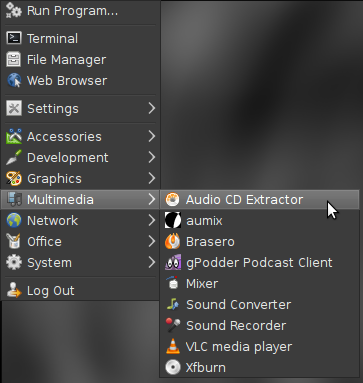
If we open this up and click on edit and preferences we should be greeted by a window as shown below:
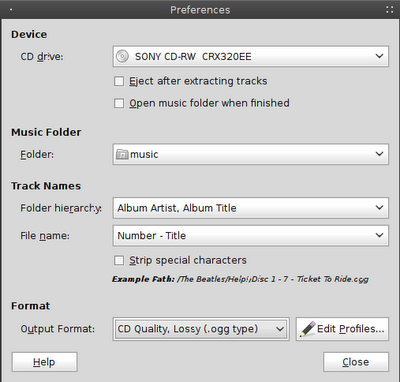
Down near the bottom of the window we should see Output Format, this by
default is set to CD Qua;ity, Lossy (.ogg type). At this point if we
click on this it will not give us the option of MP3. We still have a few
more things to do.
The package we need is not available in the Debian repos due to Debian's
commitment to free software. But we can add this. We need to go back
to our terminal.
3. As root type:
nano /etc/apt/sources.list (if you are met with the message unknown command nano, then you can retype the command replacing
nano with
gedit)
4. Decide what repos you would like to add:
Stable:
deb ftp://ftp.deb-multimedia.org stable main non-free
Testing:
deb ftp://ftp.deb-multimedia.org testing main non-free
Unstable:
deb ftp://ftp.deb-multimedia.org sid main non-free
Add
only one of the above choices, just
type the part in bold to the end of document.
5. Exit the file by pressing
Ctrl + X, it will then ask you if you wish to save press
y and then hit return twice.
This will add the repos to our system, but we also need to have the keyring before the repos will work.
6. Download the Debian Multimedia keyring, as of Debian Wheezy (the current stable version) it is in the repos. As root, type:
apt-get update
7. Navigate to the directory and, as root, type:
apt-get install debian-multimedia-keyring
8. as root, type:
apt-get update
9. as root, type:
apt-get install gstreamer0.10-lame gstreamer0.10-plugins-ugly
That's it.
To check it has worked open up Audio CD Extractor again, click on edit
and preferences. This time when we click on Output Format, MP3 should be
an option.
Enjoy your music.
A lot of new users move from Ubuntu to another Debian based distro to
limit the ammount of change they experience. But often can be a bit
daunted by the challenges that Ubuntu made easy for them. One such is
music files in MP3 format.
Whilst I personally use Ogg Vorbis and would encourage all others to, I
am realistic that a lot of people still want to use their MP3 files and
even build up their collection.
*If you are unsure what the term "as root" means then simply add sudo
before each command that requires root privileges, you will be required
to enter your password as sudo is a powerful tool*
Playing MP3 files
For playing MP3 files, the quickest method is to download VLC player.
This is available from the software repositories from the majority of
distros. This can be installed very easily:
1. Open the terminal
2. As root type:
apt-get install vlc
This now gives you a player.
Ripping CDs to MP3 format
Should you want to rip your CDs to MP3 format then we still have another few steps to take.
1. Open the terminal
2. As root type:
apt-get install sound-juicer
This gives a program that will rip the music from a CD and save it onto
the computer. We can load it up from the main menu (usually listed
under the multimedia or sound and video), called Audio CD Extractor.
If we open this up and click on edit and preferences we should be greeted by a window as shown below:
Down near the bottom of the window we should see Output Format, this by
default is set to CD Qua;ity, Lossy (.ogg type). At this point if we
click on this it will not give us the option of MP3. We still have a few
more things to do.
The package we need is not available in the Debian repos due to Debian's
commitment to free software. But we can add this. We need to go back
to our terminal.
3. As root type:
nano /etc/apt/sources.list (if you are met with the message unknown command nano, then you can retype the command replacing
nano with
gedit)
4. Decide what repos you would like to add:
Stable:
deb ftp://ftp.deb-multimedia.org stable main non-free
Testing:
deb ftp://ftp.deb-multimedia.org testing main non-free
Unstable:
deb ftp://ftp.deb-multimedia.org sid main non-free
Add
only one of the above choices, just
type the part in bold to the end of document.
5. Exit the file by pressing
Ctrl + X, it will then ask you if you wish to save press
y and then hit return twice.
This will add the repos to our system, but we also need to have the keyring before the repos will work.
6. Download the Debian Multimedia keyring, as of Debian Wheezy (the current stable version) it is in the repos. As root, type:
apt-get update
7. Navigate to the directory and, as root, type:
apt-get install debian-multimedia-keyring
8. as root, type:
apt-get update
9. as root, type:
apt-get install gstreamer0.10-lame gstreamer0.10-plugins-ugly
That's it.
To check it has worked open up Audio CD Extractor again, click on edit
and preferences. This time when we click on Output Format, MP3 should be
an option.
Enjoy your music.
Updated: MP3 files in Debian


