Showing posts with label mp3. Show all posts

Tuesday, 2 July 2013

Updated: MP3 files in Debian

A lot of new users move from Ubuntu to another Debian based distro to limit the ammount of change they experience. But often can be a bit daunted by the challenges that Ubuntu made easy for them. One such is music files in MP3 format.

Whilst I personally use Ogg Vorbis and would encourage all others to, I am realistic that a lot of people still want to use their MP3 files and even build up their collection.

*If you are unsure what the term "as root" means then simply add sudo before each command that requires root privileges, you will be required to enter your password as sudo is a powerful tool*

Playing MP3 files

For playing MP3 files, the quickest method is to download VLC player. This is available from the software repositories from the majority of distros. This can be installed very easily:

1. Open the terminal

2. As root type: apt-get install vlc

This now gives you a player.

Ripping CDs to MP3 format

Should you want to rip your CDs to MP3 format then we still have another few steps to take.

1. Open the terminal

2. As root type: apt-get install sound-juicer

This gives a program that will rip the music from a CD and save it onto the computer. We can load it up from the main menu (usually listed under the multimedia or sound and video), called Audio CD Extractor.
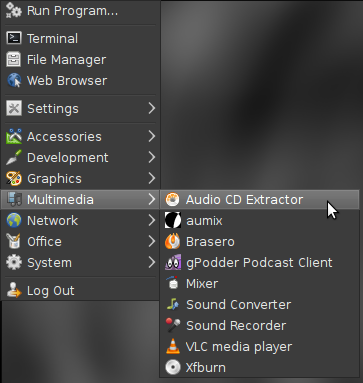


If we open this up and click on edit and preferences we should be greeted by a window as shown below:
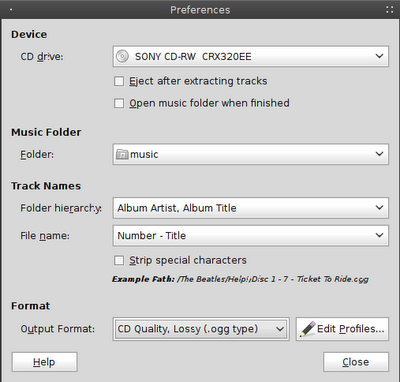


Down near the bottom of the window we should see Output Format, this by default is set to CD Qua;ity, Lossy (.ogg type). At this point if we click on this it will not give us the option of MP3. We still have a few more things to do.

The package we need is not available in the Debian repos due to Debian's commitment to free software. But we can add this. We need to go back to our terminal.

3. As root type: nano /etc/apt/sources.list (if you are met with the message unknown command nano, then you can retype the command replacing nano with gedit)

4. Decide what repos you would like to add:

Stable: deb ftp://ftp.deb-multimedia.org stable main non-free
Testing: deb ftp://ftp.deb-multimedia.org testing main non-free
Unstable: deb ftp://ftp.deb-multimedia.org sid main non-free

Add only one of the above choices, just type the part in bold to the end of document.

5. Exit the file by pressing Ctrl + X, it will then ask you if you wish to save press y and then hit return twice.

This will add the repos to our system, but we also need to have the keyring before the repos will work.

6. Download the Debian Multimedia keyring, as of Debian Wheezy (the current stable version) it is in the repos.  As root, type: apt-get update

7. Navigate to the directory and, as root, type: apt-get install debian-multimedia-keyring

8. as root, type: apt-get update

9. as root, type: apt-get install gstreamer0.10-lame gstreamer0.10-plugins-ugly

That's it.

To check it has worked open up Audio CD Extractor again, click on edit and preferences. This time when we click on Output Format, MP3 should be an option.

Enjoy your music.


Monday, 15 April 2013

CCJam - Community podcast

It is with a sense of eager anticipation that I announce the news of a new community podcast: CCJam.

CCJam has been released as part of the Unseenstudio Podcast Network, but it is quite different to the other podcasts on the network in that it is non-techy, this is a music podcast.

The aim of CCJam is to promote independent artists/bands, but the major difference with this project is that it is to be community run, this is not simply another podcast featuring Kevie.  Each episode is made up of two music tracks with the talk being submitted by individual show hosts.  The talk doesn't have to be too lengthy, just introduce yourself and the band, then where the listeners can go to listen to more tracks or to find out some further information.  Your welcome to talk about anything else in the show, it's up to you.

In order to make this as easy as possible for everybody, I have broken it down into three steps:

1.  Find a band that you wish to promote.*

2. Record your talk about the artist (no need for anything fancy, this may even be on your smartphone)

3. Email me (ccjam at unseenstudio dot co dot uk) the file along with the links for the tracks

That's it!!! I'll do the rest. The show will be released on the Unseenstudio website and it will be added to the subscribers feed automatically.  In order to make the show accessible to as wide a range as possible it is available in both Ogg and MP3 format.

*If the band releases their music under a copyright license then please have a band member email me with permission that CCJam is allowed to play their music.

Friday, 7 December 2012

Updated: MP3 files in Debian

A lot of new users move from Ubuntu to another Debian based distro to limit the ammount of change they experience. But often can be a bit daunted by the challenges that Ubuntu made easy for them. One such is music files in MP3 format.

Whilst I personally use Ogg Vorbis and would encourage all others to, I am realistic that a lot of people still want to use their MP3 files and even build up their collection.

*If you are unsure what the term "as root" means then simply add sudo before each command that requires root privileges, you will be required to enter your password as sudo is a powerful tool*

Playing MP3 files

For playing MP3 files, the quickest method is to download VLC player. This is available from the software repositories from the majority of distros. This can be installed very easily:

1. Open the terminal

2. As root type: apt-get install vlc

This now gives you a player.

Ripping CDs to MP3 format

Should you want to rip your CDs to MP3 format then we still have another few steps to take.

1. Open the terminal

2. As root type: apt-get install sound-juicer

This gives a program that will rip the music from a CD and save it onto the computer. We can load it up from the main menu (usually listed under the multimedia or sound and video), called Audio CD Extractor.


If we open this up and click on edit and preferences we should be greeted by a window as shown below:


Down near the bottom of the window we should see Output Format, this by default is set to CD Qua;ity, Lossy (.ogg type). At this point if we click on this it will not give us the option of MP3. We still have a few more things to do.

The package we need is not available in the Debian repos due to Debian's commitment to free software. But we can add this. We need to go back to our terminal.

3. As root type: nano /etc/apt/sources.list (if you are met with the message unknown command nano, then you can retype the command replacing nano with gedit)

4. Decide what repos you would like to add:

Stable: deb ftp://ftp.deb-multimedia.org stable main non-free
Testing: deb ftp://ftp.deb-multimedia.org testing main non-free
Unstable: deb ftp://ftp.deb-multimedia.org sid main non-free

Add only one of the above choices, just type the part in bold to the end of document.

5. Exit the file by pressing Ctrl + X, it will then ask you if you wish to save press y and then hit return twice.

This will add the repos to our system, but we also need to have the keyring before the repos will work.

6. Download the Debian Multimedia keyring from here.

7. Navigate to the directory and, as root, type: dpkg -i debian-multimedia-keyring*.deb

8. as root, type: apt-get update

9. as root, type: apt-get install gstreamer0.10-lame gstreamer0.10-plugins-ugly

That's it.

To check it has worked open up Audio CD Extractor again, click on edit and preferences. This time when we click on Output Format, MP3 should be an option.

Enjoy your music.

Friday, 13 May 2011

Pogo music player


Having recently volunteered to do a bit of graphics work for a project called Pogo, I thought I should investigate this application a bit more and even give it a trial run. I have to confess, at the time the email came in requesting help with a logo I accepted the challenge without even knowing what the application did.

After briefly reading through the email and several brief conversations between the creator Jendrik Seipp and myself, I took a look at the website, which to my disappointment was simply a launchpad page. So the first thing that struck my mind was that this was, primarily, an Ubuntu project. The choices for download are a *.deb file or the source data in a *.tar.gz file. As I have Crunchbang installed on my system anyway I opted for the deb file simply to make life easier.


The install went smoothly and very quickly I had the Pogo music player (0.4 at the time of writing this) up and running:


The user interface is very simple; a window split into two screens. The left screen is a tree view of your files, this can be navigated quite easily for any music that is in your home folder. However for files that are on a separate partition, you will need to go all the way back to / and manually find the mount point of the drive (usually /mnt or /media depending on your distro). The partition must be mounted already as there is no way to mount it from Pogo.

The right screen is your playlist, to add a music file you can either double click on it in the left screen or drag it into the right screen using the mouse and holding the left button. The responsiveness of Pogo is very good indeed, it is lightning fast and the files play without any delay. Whilst playing, a progress bar appears at the top, which can be dragged to get the position in the file you want, handy for longer podcasts. Also the cover of the album appears in the bottom right of the window.

True to Ubuntu style, whenever a new track starts a notification pops up in the top right of your desktop just under the system tray (again this is depending on your desktop environment, but this is the case in XFCE). These, thankfully, can be turned off with a single click in preferences.


A search function is also included to allow you to look out your favourite bands or songs quickly, however all it kept giving me was a "no tracks found" message. Take a look at the screenshot below, look at the search, now compare the result with the tracks that are currently playing:


There are a few major omissions that I simply couldn't live without with regards to my media player:
  1. The lack of a shuffle option (this apparently is set to be included in the next release)
  2. The ability to add all the files from a folder, instead of selecting the files and moving them over to the playlist screen.
  3. The ability to stream from the internet
This isn't aiming to be VLC. It is a fast and simple music player and, if I'm being honest, it plays files and uses up hardly any resources in the process. The notifications that can't be interacted with are very much in line with the current Ubuntu trend. I feel that this project is best suited to low spec machines and (very early stage) newbie users, those like your older relations who only want to play a few files. Pogo adopts a 'keep it simple' philosophy, the lack of options and buttons make it incredibly easy to use. I'll keep an eye on this project, but I won't be uninstalling VLC quite yet. A bit too basic for my needs at the present time.

Sunday, 27 February 2011

MP3 files in Debian

A lot of new users move from Ubuntu to another Debian based distro to limit the ammount of change they experience. But often can be a bit daunted by the challenges that Ubuntu made easy for them. One such is music files in MP3 format.

Whilst I personally use Ogg Vorbis and would encourage all others to, I am realistic that a lot of people still want to use their MP3 files and even build up their collection.

*If you are unsure what the term "as root" means then simply add sudo before each command that requires root privileges, you will be required to enter your password as sudo is a powerful tool*

Playing MP3 files

For playing MP3 files, the quickest method is to download VLC player. This is available from the software repositories from the majority of distros. This can be installed very easily:

1. Open the terminal

2. As root type: apt-get install vlc

This now gives you a player.

Ripping CDs to MP3 format

Should you want to rip your CDs to MP3 format then we still have another few steps to take.

1. Open the terminal

2. As root type: apt-get install sound-juicer

This gives a program that will rip the music from a CD and save it onto the computer. We can load it up from the main menu (usually listed under the multimedia or sound and video), called Audio CD Extractor.


If we open this up and click on edit and preferences we should be greeted by a window as shown below:


Down near the bottom of the window we should see Output Format, this by default is set to CD Qua;ity, Lossy (.ogg type). At this point if we click on this it will not give us the option of MP3. We still have a few more things to do.

The package we need is not available in the Debian repos due to Debian's commitment to free software. But we can add this. We need to go back to our terminal.

3. As root type: nano /etc/apt/sources.list (if you are met with the message unknown command nano, then you can retype the command replacing nano with gedit)

4. Decide what repos you would like to add:

Stable: deb ftp://ftp.debian-multimedia.org stable main non-free
Testing: deb ftp://ftp.debian-multimedia.org testing main non-free
Unstable: deb ftp://ftp.debian-multimedia.org sid main non-free

Add only one of the above choices, just type the part in bold to the end of document.

5. Exit the file by pressing Ctrl + X, it will then ask you if you wish to save press y and then hit return twice.

This will add the repos to our system, but we also need to have the keyring before the repos will work.

6. Download the Debian Multimedia keyring from here.

7. Navigate to the directory and, as root, type: dpkg -i debian-multimedia-keyring*.deb

8. as root, type: apt-get update

9. as root, type: apt-get install gstreamer0.10-lame gstreamer0.10-plugins-ugly

That's it.

To check it has worked open up Audio CD Extractor again, click on edit and preferences. This time when we click on Output Format, MP3 should be an option.

Enjoy your music.

Friday, 21 May 2010

Switch to Ogg Vorbis

Everybody with a PC on the planet has heard of MP3. Some may know a little about wav and wmv but very few people have heard of the Ogg Vorbis file format (commonly refered to as Oggs).

You may ask why should I care? I have used MP3s for ages and I'm happy with them. Well you have the right to ask that and if anybody is going to convert from any form of media or software that works for them, then they will need a bit of convincing. People are not going to simply stop using one form of music file and switch to another over night.

The main selling point of Oggs is their free and openness. Should you choose to purchase a song from itunes, Napster or any other online music store then it may come with something called DRM (Digital Rights Management) this stops you from playing the file on another PC, MP3 player and can also stop the file being burnt onto CD; a bit unfair for something you purchased, right? Ogg files are DRM free due to their open nature; when you download an Ogg file you can burn it to CD, play it on as many PCs and media players as you wish.

OK then you may respond "I don't buy MP3s so this does not affect me." Well the other main point without getting too technical is that Oggs are smaller file sizes than their MP3 equivalents. Which means that you can get more music files onto your media player. Of course not all media players play Ogg Vorbis yet, a list of players that play Ogg natively can be found here.

CDs can be ripped directly to Ogg using a variety of software. If you run a Linux distro then the standard CD ripping software should convert your CDs to Ogg files by default. For a Windows platform then there a variety of packages that can do this, the Free Software Foundation recommend CDex. Music Man can be used to rip Ogg using a Mac platform.

One piece of advice I would give any users changing from MP3 to Ogg is not to convert the software; rip from a CD when possible. Why? Well both MP3 and Ogg are known as 'lossy' which means that every time you convert a file to them you lose a bit of quality. There are plenty of MP3 to Ogg converters available, but I would only recommend this as a last resort, for best results rip from a CD.

Most media players will play Ogg files with a bit of tweaking, but I would personally recommend VLC player. This is cross platform and plays Oggs 'out of the box'.

I personally use my GP2X Wiz and my Android phone, both of which play Ogg without any modifications. I've also been recommended Sansa Clip by gadgetwisdom on identi.ca, but I have no personal experience with this player.

The link earlier in the post gave a list of media players that currently play Ogg. I am aware that the Ipod is probably the biggest selling MP3 player and it's not on the list. This is not a problem, I have an Ipod Classic and it runs Ogg fine with a wee bit of fine tuning, watch the video below for more information:


Check out the Rockbox site if your MP3 player is not listed as compatible, it may be able to allow your MP3 player to run Ogg Vorbis.

Now that you know what it is spread the word: the Free Software Foundation have a pre-written email available for copying here.

PlayOgg